A Faster Way to Access Your Investment Statements
We are pleased to introduce a new feature that allows you to download your Capital Gain Report and Portfolio Report directly through the PEN App using your mobile phone or laptop.
This self-service facility enables you to access your investment reports anytime, helping you save time and making your year-end tax filing process more convenient.
-
How to Download Capital Gain or Portfolio Reports
- Step 1:
Log in to the PEN App using your Client Code and Password. You may also access the PEN App through your laptop by visiting our website (pentad.in) and logging in.
- Step 2:
After successful login, the home screen will appear as shown in Image 1.
- Step 3:
Click on the three-line menu (☰) located on the top-left side of the screen as highlighted in Image 1.
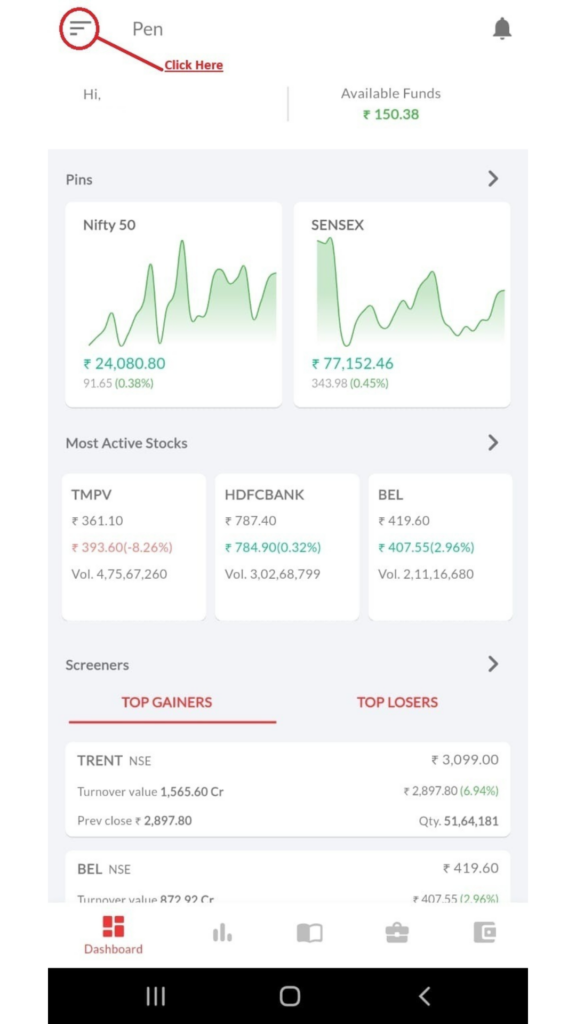
Image 1 – PEN App Home Screen
-
Step 4
- From the menu, click on the Back Office option as shown in Image 2.
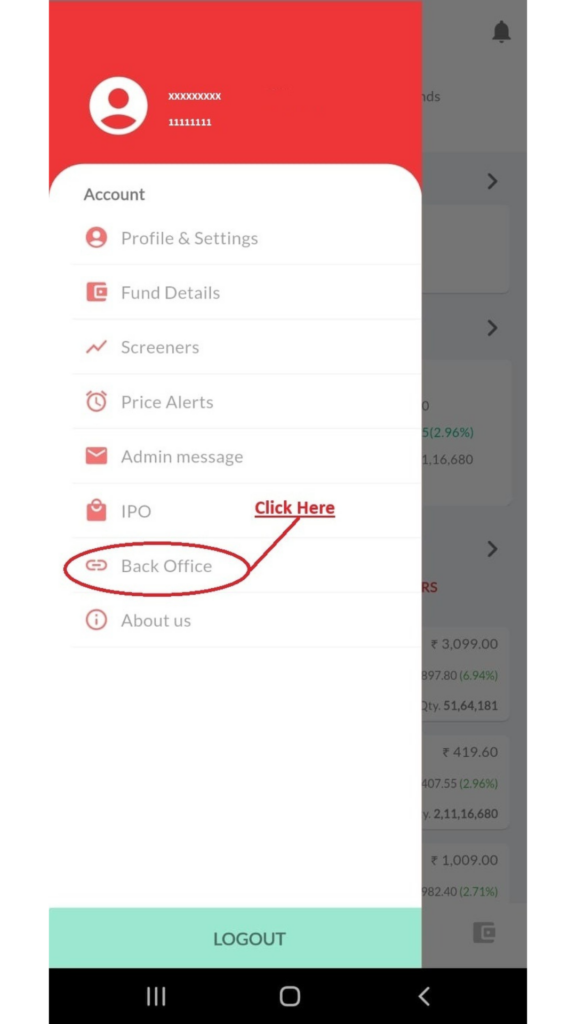
Image 2 – Back Office Option
-
Step 5
- A new page will open. Please wait until the page loads completely. Once the loading is finished, click on the menu icon located at the top-left corner of the screen as shown in Image 3.
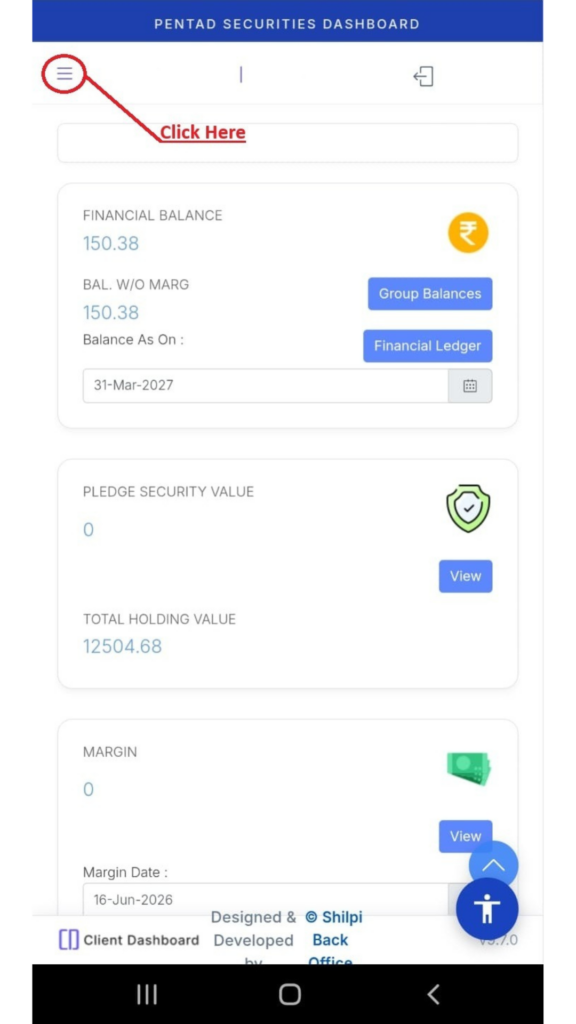
Image 3 – Menu Icon .
-
Step 6
- From the left-side navigation panel, click on Year End Report as shown in Image 4.
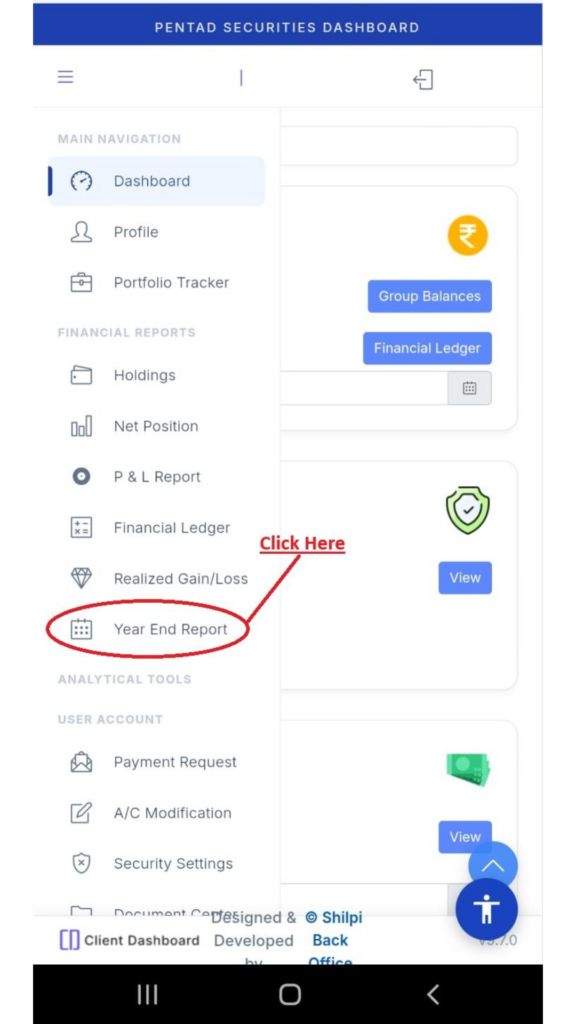
Image 4 – Year End Report Menu
-
Step 7
- The Year End Summary Report page will be displayed as shown in Image 5.If you are using a mobile phone, please rotate your device to landscape mode for a better viewing experience. If Auto Rotate is disabled, kindly enable it from your phone settings.
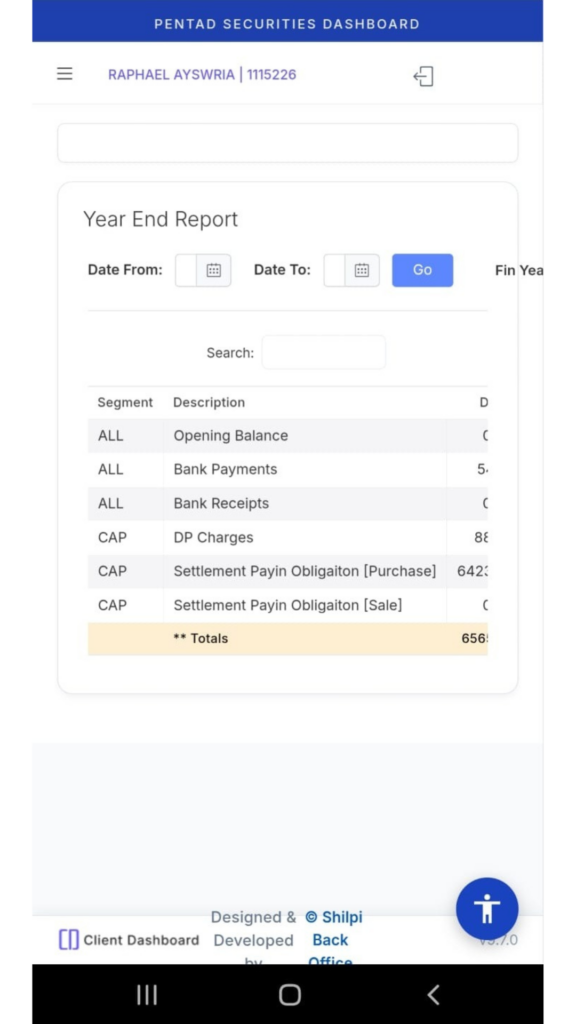
Image 5 – Year End Summary Report
-
Step 8
- After rotating your phone to landscape mode, click on Download Comprehensive Report as highlighted in Image 6.The report will be automatically downloaded to your device’s Downloads folder in Excel format.
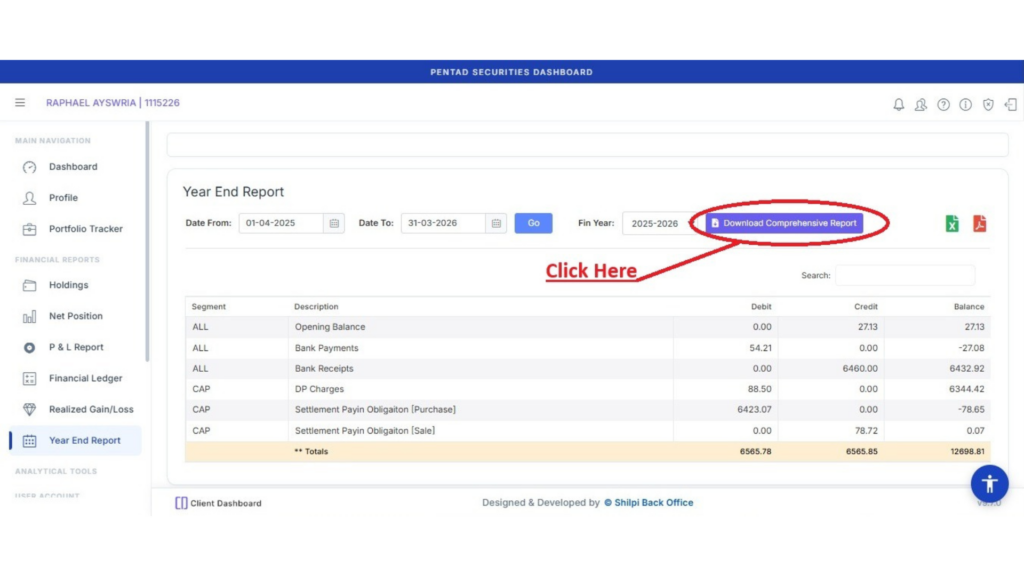
Image 6 – Download Comprehensive Report
Need Assistance?
If you face any issues while downloading the report, please feel free to contact us at operations@pentad.in . Our team will be happy to assist you.