Here are the step-by-step instructions to transfer securities from your Pentad Securities account using CDSL Easiest, presented in a pointwise format:
Registration and Upgrade
- If you haven’t registered for CDSL Easiest, visit web.cdslindia.com/myeasitoken/home/login and click on the “Click here” button next to “To Register for Easiest!”.
- Enter your 8-digit DP ID followed by your 8-digit demat client ID (BO ID) and continue.
- Enter the OTP received on your registered mobile or email and proceed.
- If you already have a Myeasi account, upgrade to Myeasiest for easier transfers.
Adding Beneficiary and Trusted Account
- Add the receiver’s (transferee’s) demat account as a beneficiary on CDSL. This is mandatory for off-market transfers.
- After adding the beneficiary, add that account as a Trusted Account on CDSL Easiest. This process takes up to 24 hours to be approved.
Initiating Transfer
- Log in to CDSL Easiest using your credentials.
- Select the option to transfer securities and choose the beneficiary account as the destination.
- Enter the details of the securities you want to transfer, including ISIN and quantity.
- Verify the transfer request and submit. The transfer will be processed after CDSL’s approval.
Additional Notes
- Ensure your account is not dormant or frozen; inactive ISINs cannot be transferred.
- For off-market transfers, fields like Exchange ID and Settlement ID are not required.
- If transferring to an NSDL account, use the “Account of choice transfer” option instead of adding as a trusted account.
These steps will help you securely transfer securities from your Pentad Securities demat account to other CDSL demat accounts using CDSL Easiest.
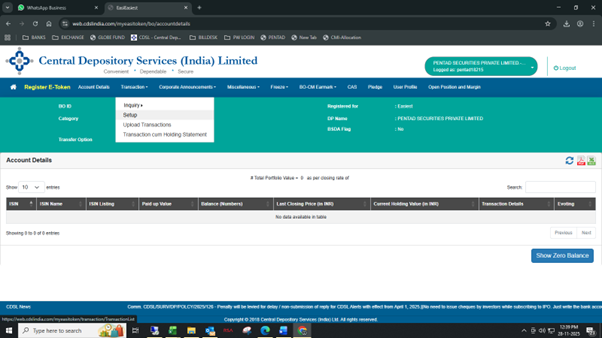
1. Log in to web.cdslindia.com/myeasitoken/home/login and click on Setup under Transactions.
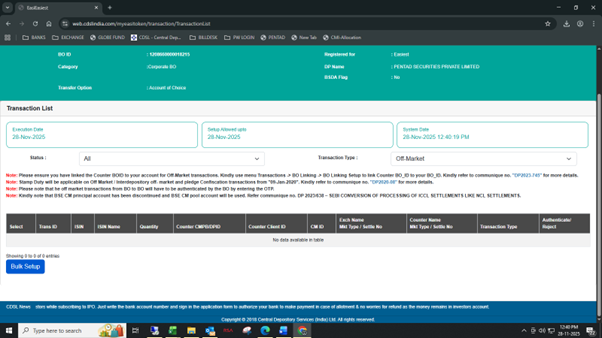
2. Click on Bulk Setup.
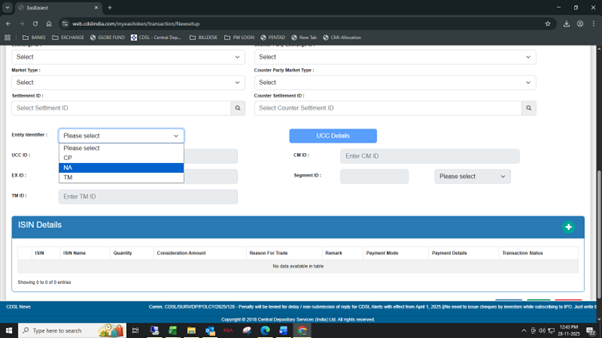
3. Click on Transaction and enter the execution date and enter the Beneficiary owner ID (BOID) of the person to whom the securities are to be transferred. Select NA from the drop-down in the Entity Identifier.
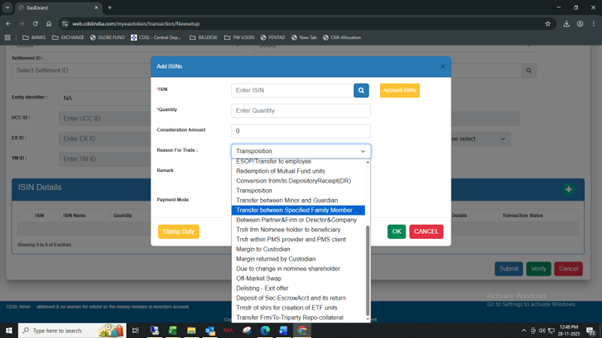
4. Click on Account ISINs, select the ISINs from the list of holdings, enter the quantity, and select the reason. You can refer to the following comminique from CDSL to select the correct reason code.
For Off-Market Sale/Purchase
- If transferring due to a sale, enter the sale amount under “Consideration Amount”.
- Select the payment mode and enter the buyer’s bank details.
- Pay stamp duty for the sale using your CDSL virtual account before the transfer.
- Visit cdslindia.com/stampduty/cal_stampduty.aspx to check the required stamp duty amount.
For Gift, Self-Transfer, or Family Transfer
- If transferring as a gift, to self, or to family (no money involved), enter “0” as the consideration amount.
- Do not select any payment mode in this case.
Bulk Setup and Authentication
- You can add up to 10 ISINs at a time for transfer.
- After setting up 10 ISINs, click on “Transaction” and then “Bulk setup” to add another 10.
- Repeat this process in multiples of 10 to add more transactions.
- In your final batch, you’ll see a complete list of all transactions.
- Select the transactions and authenticate them using your OTP and PIN to complete the setup.
5. Click on Submit. If the receiver’s beneficiary is not added, the following error will be displayed: Active link between seller and buyer does not exist. To learn how to add a beneficiary
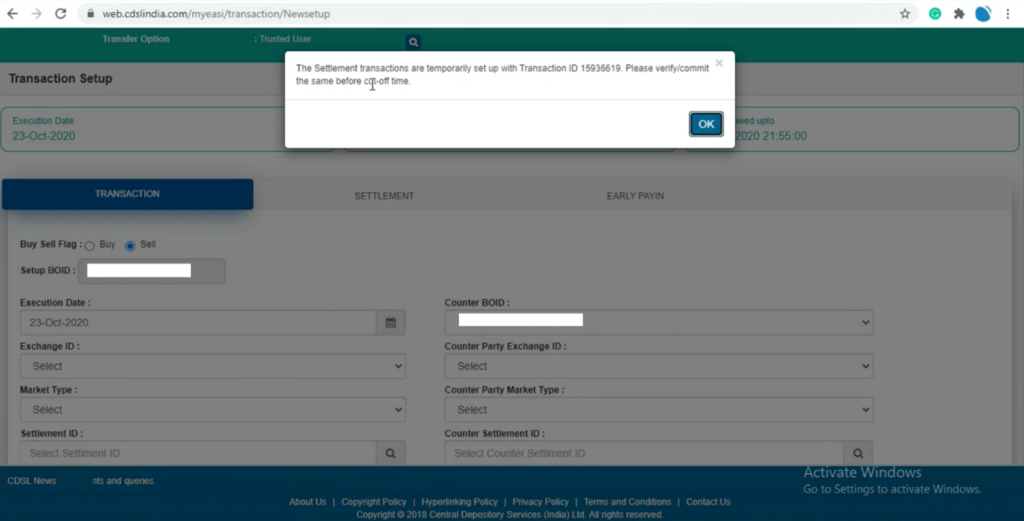
6. Click on Verify. Exchange ID, Counter Party Exchange ID, Market Type, Counter Party Market Type, Settlement ID and Counter Settlement ID need not be filled in for off-market transactions.
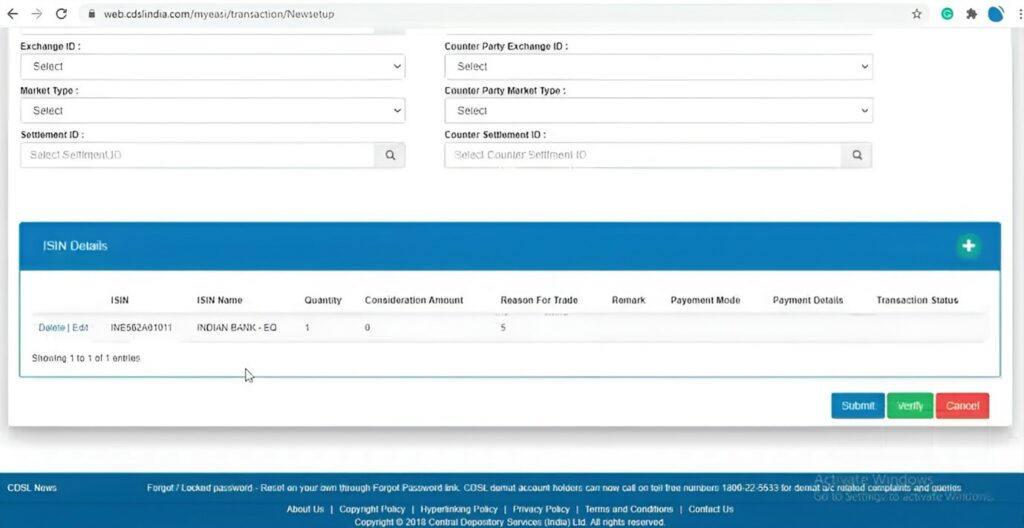
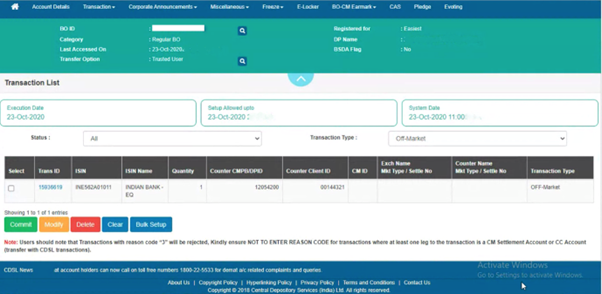
7. Click on Commit and then enter the OTP received on the registered mobile number and email.
8. Enter the 8-digit alphanumeric CDSL easiest PIN received on the registered email ID. Do not enter the 6-digit CDSL TPIN. First-time users must change the default PIN by visiting web.cdslindia.com/myeasitoken/home/login and, clicking on Miscellaneous, and then on Change PIN.
If the PIN was not received or forgotten, visit web.cdslindia.com/myeasitoken/home/login, click on Miscellaneous and then on Reset PIN.
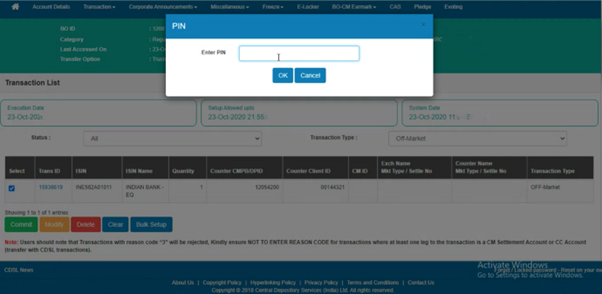
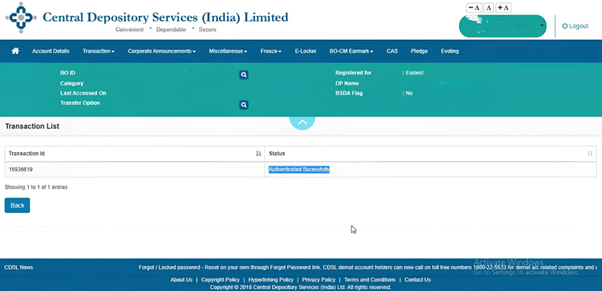
This is now sent to the Depository Participant (DP) for confirmation. The request is approved on confirmation, and the transfer will be done.